When you open the “Contacts” module in the main menu, the following window is displayed. In the list view, the contacts are displayed in different colors: blue = suppliers, black = customers, gray = blocked contact.
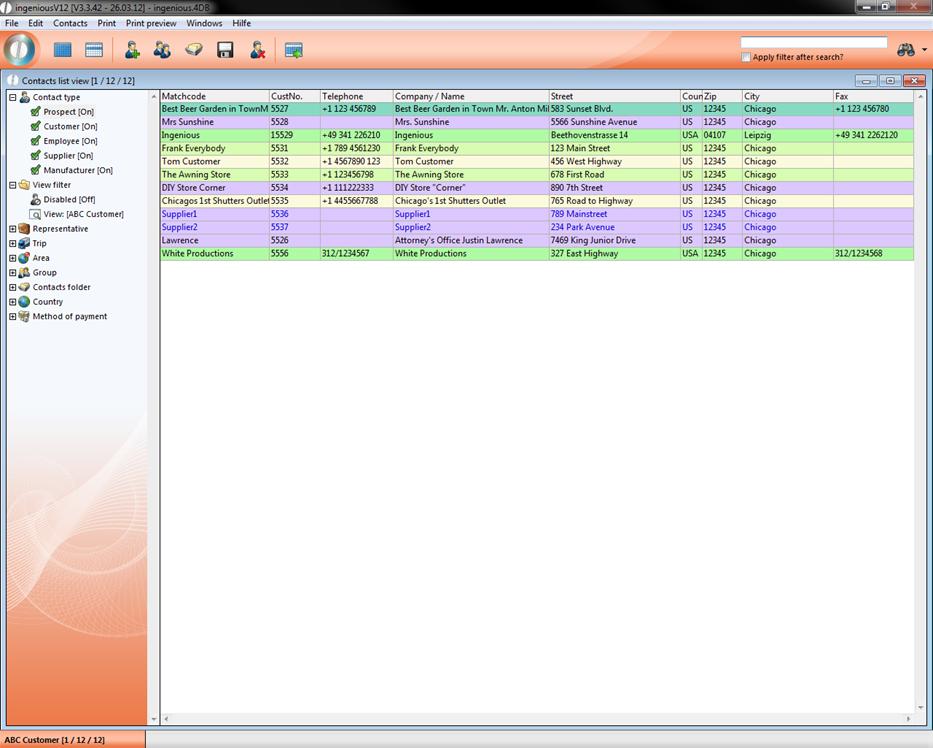
Initial view of the contacts module
The title bar of the module window
All 12 sample records are displayed. One identifies this in the title bar of the module window.
This shows you to which module this window belongs, which view is active and how many records are selected at once. The number of the active records is shown in parenthesis. In our example this is: (12/12). This means that 12 records are found in your database and that also 12 records are shown. The formula is easy to understand: (Number of active indicated records / Number of all records)
The icon bar of the module window
You will find the icon view under the title bar.
In the icon bar, the fast search is provided and the buttons for the detail search as well as other diverse module-dependent buttons.
 With this button you can retrieve all records
 With this button you only retrieve selected records
 With this button you insert a new contacts
 With this button you duplicate the selected records
 With this button you reassign the selected records to a contacts file
 With this button you save the changes to the records
 With this button you delete the selected record
 With this button you can export your contact list to excel
Ingenious.V12 quotations you its large selection of presorting. This way you can sort by clicking on the corresponding icon for contacts type, region, group, country, the representative’s route or the payment type, for example.
Practice sorting and retrieving records
1. Retrieve all records with the  “List all contacts” button.
2. In the left area of the module window that contains the icons for presorting, you will uncheck all filter except for “Customer” and click the button
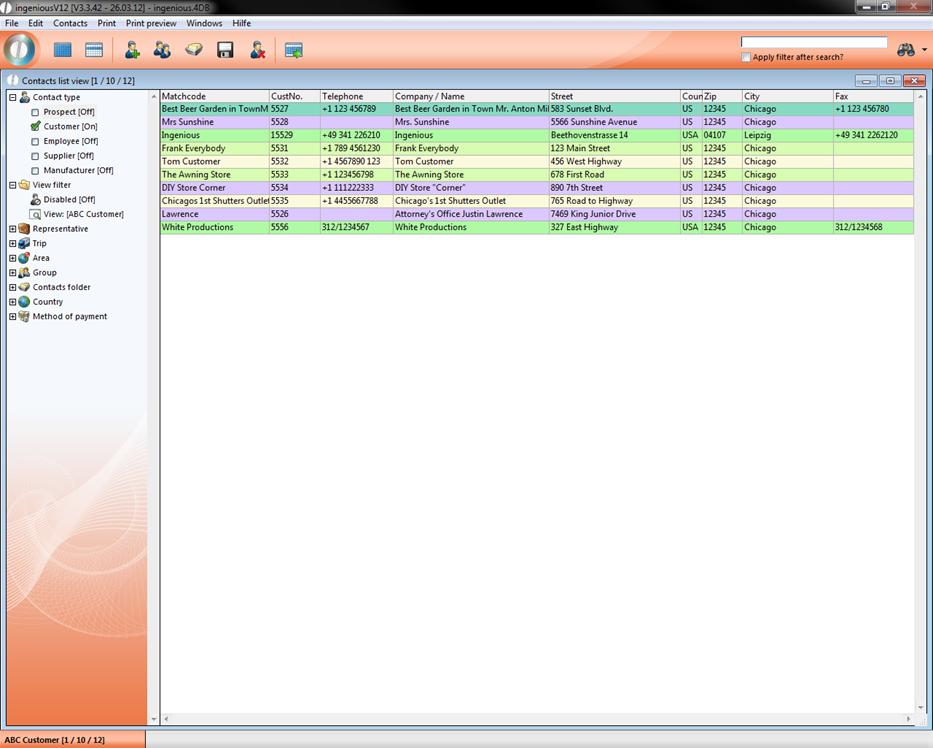
Now there are only 10 to 12 records to be seen.
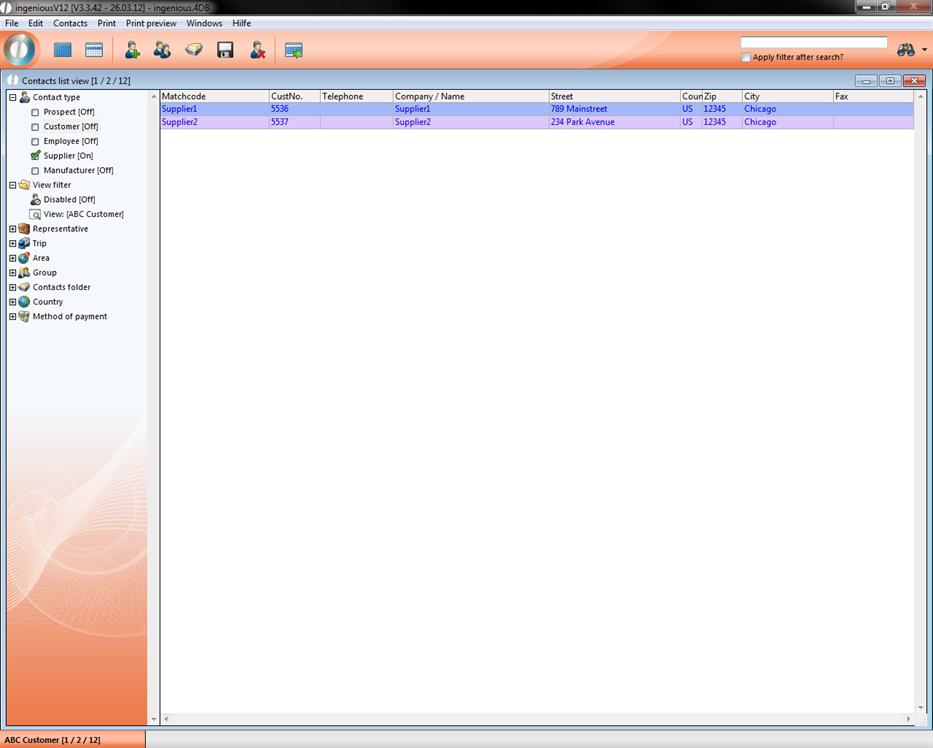
3. Now uncheck “Customer”, check “Supplier” and click the button in order to display all suppliers. Two records will be shown.
4. In order to sort the records for example according to “Contacts Nr.”, simply click on the corresponding column head in the list view (right). The records are sorted in descending order. If you click on the column head again, the records are sorted in ascending order.
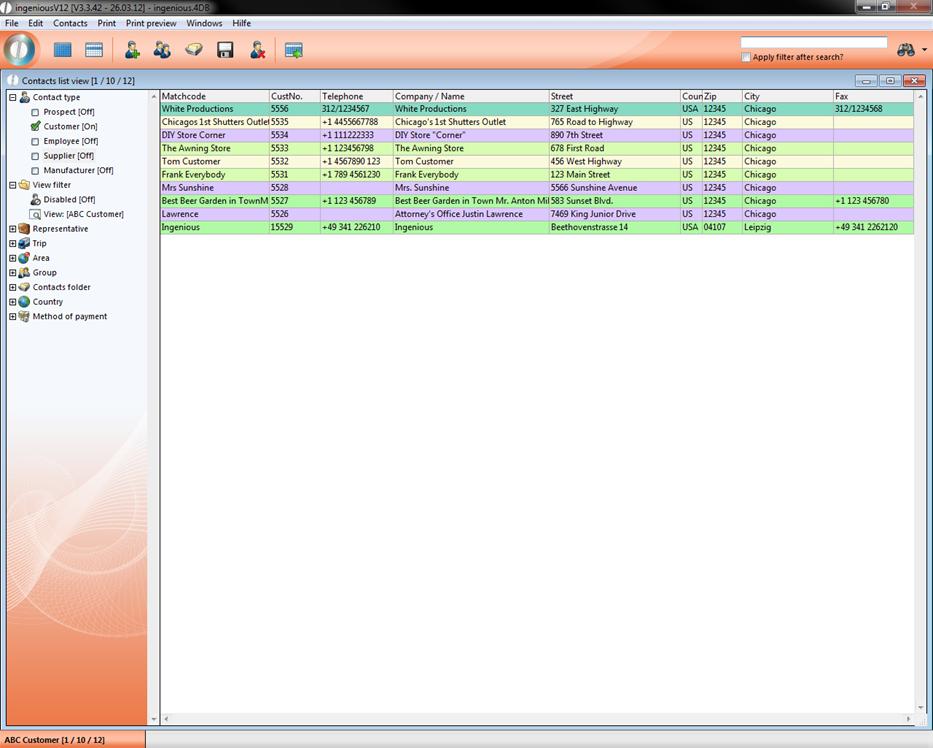
5. If you would like to sort the records by city then you only need to click on the column header “City”.
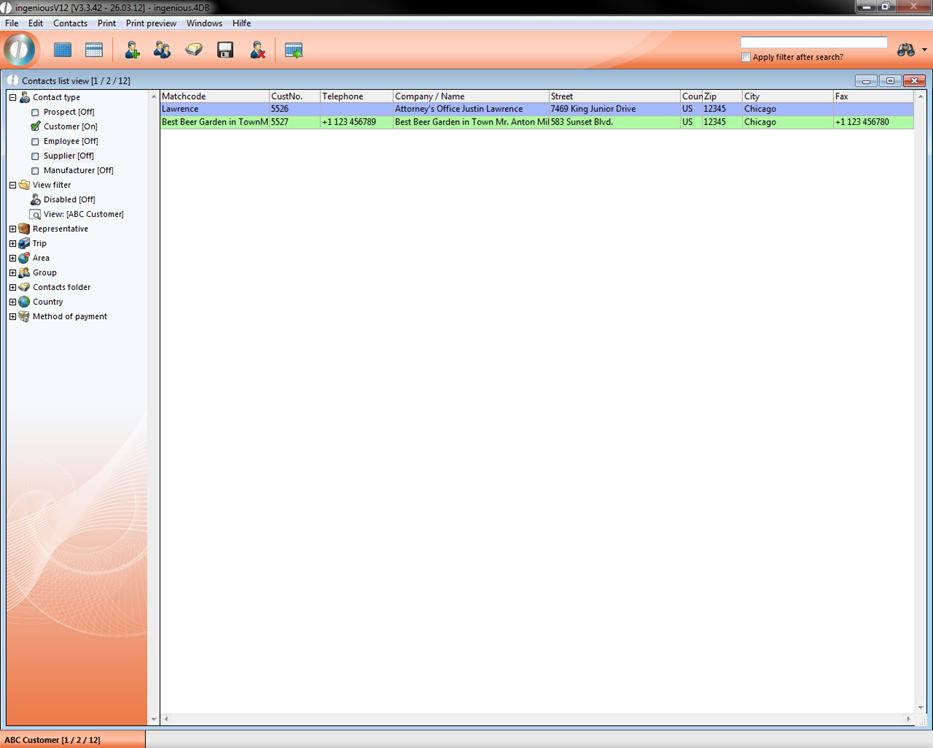
6. Now select the records “Lawrence” and “Best Beer Garden in Town” with your mouse.
7. In order for only these records to be displayed, click on the button  “List selected contacts”.
The module window appears as follows:
8. To display all records, just click on the button “List all contacts” in the icon bar.